How do I add a moment?
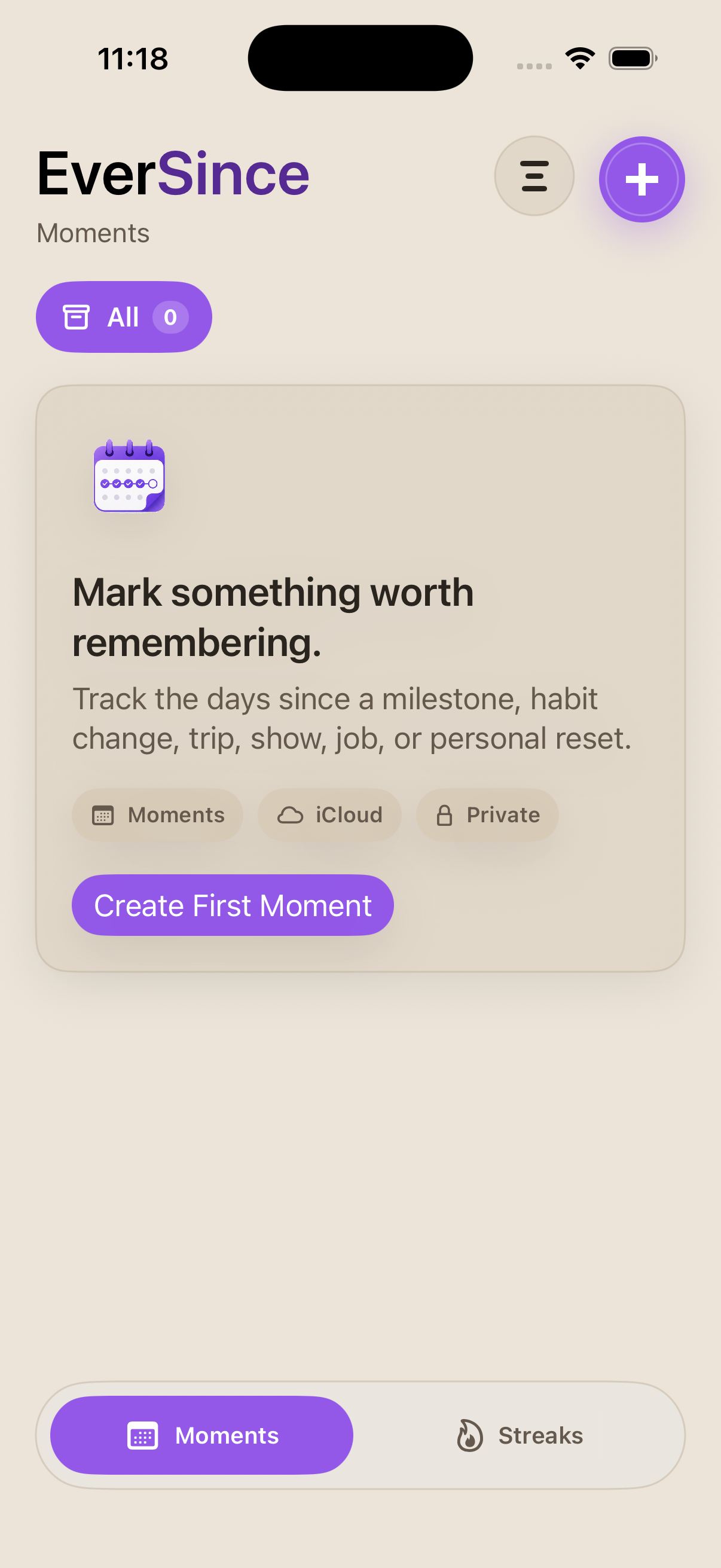
Open EverSince and choose the add button. Enter a title, choose Days Since or Days Until, choose the date, select a category, and save. New moments appear in the event list with their day count.
Support
EverSince is a private, local-first app for tracking days since, days until, and daily streaks across your Apple devices. This page covers common tasks, iCloud sync, reminders, limits, troubleshooting, and how to contact support.
Support email: contact@absessive.com
EverSince does not use a separate email and password login. Your moments, categories, and streaks are saved on your device first, and iCloud can keep them in sync with the Apple ID already signed in on your device. The app continues to work offline without a network connection.
Quick help for creating, changing, and organizing moments.
Open EverSince and choose the add button. Enter a title, choose Days Since or Days Until, choose the date, select a category, and save. New moments appear in the event list with their day count.
Tap a moment from the list to open its detail view, then choose Edit. You can update the title, date, category, or direction, then save the updated moment.
Open the moment detail view and choose Delete. EverSince asks for confirmation before removing a moment so accidental deletes are less likely.
Open a moment detail view and choose Reset to Today. EverSince can ask for confirmation before changing the original date, and you can show that warning again from Help & About.
Categories organize moments and streaks into types like Personal, Entertainment, Work, Health, Travel, or custom categories you create. A category can provide the default icon and color for items inside it.
In Manage Categories, choose the option to create a custom category. Add a name, icon, and color, then save. Built-in categories stay available, and custom categories can be deleted later.
Use the Streaks tab to track routines you want to keep active. Check in when you complete a streak, catch up on missed check-ins within 3 days, restart paused streaks, and optionally enable daily reminder notifications.
Free includes 10 moment creations and 5 streak creations over time, plus up to 3 custom categories saved at a time. EverSince Plus raises the creation totals to 100 each and custom-category capacity to 15. Moment and streak totals are cumulative: deleting a record does not return a creation. Editing, restarting a streak, and undoing a deletion do not use another creation. You can create another custom category once the number saved is below your plan's cap. Existing records remain available to view and edit if your plan changes. Every tier uses the same 1 MB estimated iCloud sync budget; it is not a paid entitlement.
The current release includes moments, Days Until, streaks, reminders, categories with expanded custom color choices, iCloud sync, appearance settings, iPhone and iPad layouts, and Help & About. There are no EverSince account screens in this version.
Plus is one lifetime purchase with no subscription. It includes 100 moment creations, 100 streak creations, 15 saved custom categories, rolling 30- and 90-day streak check-in rates, completed-run summaries, and the Deep Ocean, Quiet Forest, and Soft Tide appearance palettes. The app shows the current price for your App Store region before you buy. Local tracking, raw streak history, reminders, built-in categories, and iCloud sync remain available on Free.
Use the Apple account that purchased Plus, then choose Restore Purchase in Help & About or on the Plus screen. Plus is also checked automatically when you open EverSince. If a purchase is waiting for Apple approval, Plus activates when Apple completes it. Your records stay available while you wait.
EverSince is designed to be local-first. You can create and view moments without a network connection. Your EverSince data is saved on this device first, and iCloud sync uses the Apple ID already configured on the device when iCloud is available.
Try these steps before contacting support.
Open Help & About to review the current sync status. If iCloud is unavailable, EverSince keeps saving locally and can sync again after iCloud and the network are available.
If an item looks missing, switch back to All and confirm whether you are viewing Moments or Streaks.
Close and reopen EverSince if a count, category, or setting does not look current.
If the issue continues, email support with your device model, iOS version, EverSince version, and a short description of what happened.